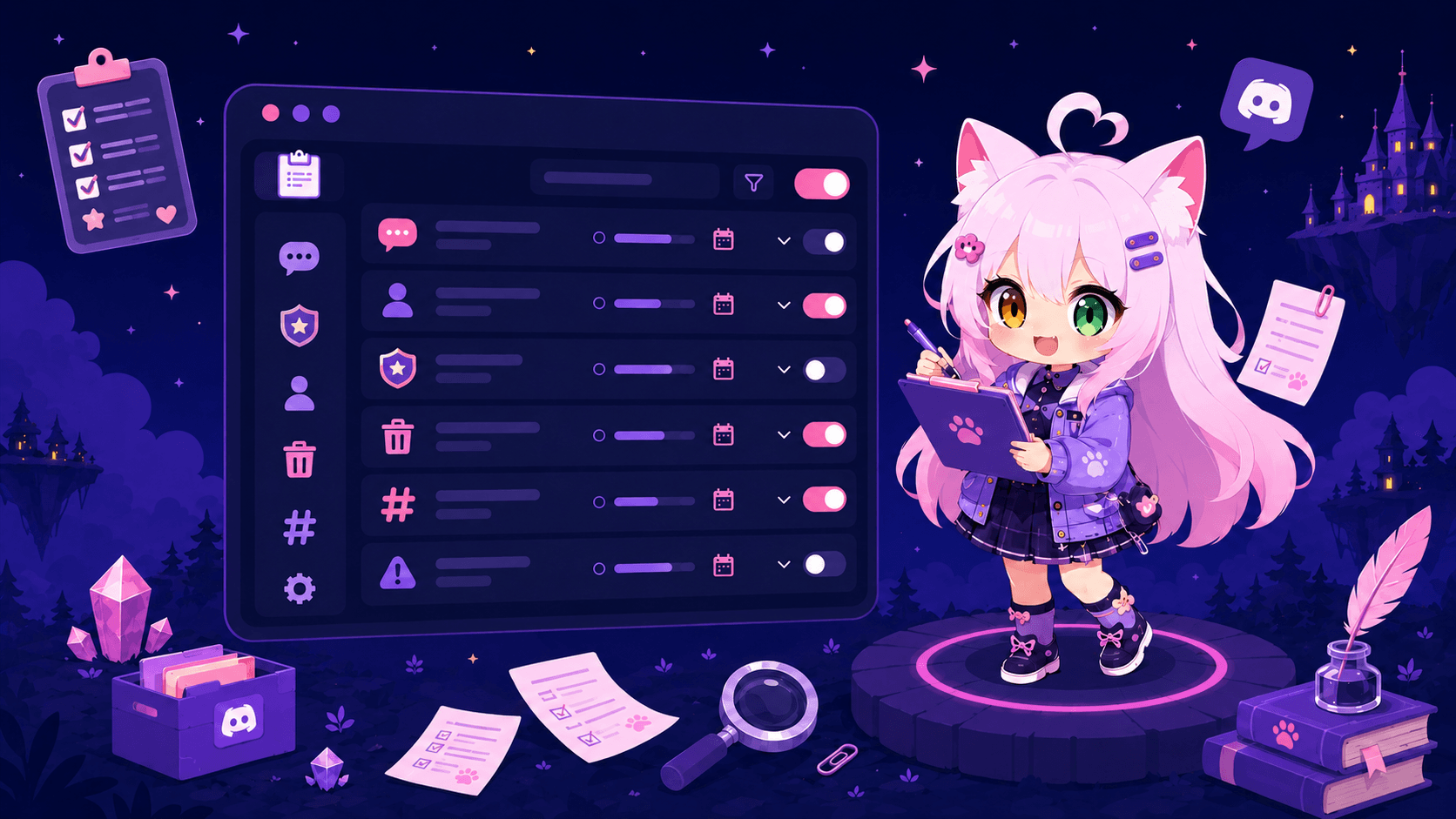
Set up server logs with Nekotina
Published on May 26th, 20262 min read
Log moderation, message, member, and other events to dedicated Discord channels.
Server logs let you audit what happens in your community: deleted messages, members joining or leaving, role changes, moderation actions, and more. Each event type can go to a different channel.
Prerequisites
- Access to the dashboard.
- Dedicated log channels (e.g.
#mod-logs,#message-logs). - Nekotina needs Manage Webhooks in those channels.
See recommended permissions in the wiki.
Step 1 — Open logs
- Go to Utilities → Logs.
- Choose an event category:
| Category | What it logs |
|---|---|
| Automoderation | Invite links removed automatically |
| Channels | Channel create, update, delete |
| Confessions | Submit, block, unblock |
| Polls | Create, votes, finalize, delete |
| Threads | Thread create, update, delete |
| Voice channels | Join, leave, switch |
| Messages | Edit, delete, bulk purge |
| Members | Avatar, nickname, roles, verification, and server boosts (Discord Nitro) |
| Moderation | Bans, kicks, mutes, warnings, timeouts, etc. |
| Server | Members joining or leaving |
| Roles | Role create, update, delete |
| Economy (Premium) | Global gifts, coin shares, trades, server vault |
| Server shop (Premium) | Staff coin changes, member donations, shop item gifts |
Note: the Server boost event under Members is Discord Nitro boosting, not the boost welcome message under Announcements → Server Boosts.
Step 2 — Assign channels
For each event in the category, select the channel where you want the log. You can use one channel for multiple events or split by type.
Step 3 — Ignore channels and roles
Under Ignored channels and roles, exclude:
- Bot or spam channels.
- Bot or service account roles.
This reduces noise in your logs.
Step 4 — Save
Click Save changes for each category you configure.
For your staff (economy and shop)
If your community uses global economy or a server shop, enable with Premium:
- Economy: item gifts, coin shares, player trades.
- Server shop: admin coin grants/removals, member donations and item gifts.
Moderation can investigate abuse without relying on chat screenshots.
Tips
- Create log channels visible to staff only.
- Start with Moderation and Messages — usually the most useful.
- Economy and Server shop categories require Premium. Useful if you run a server shop.
Common issues
Summary
1. Utilities → Logs → Choose category
2. Assign channel per event
3. Configure ignored lists
4. Save changes
Your moderation team will have a clear record of server activity.